Bases Loaded Baseball Play Simulator
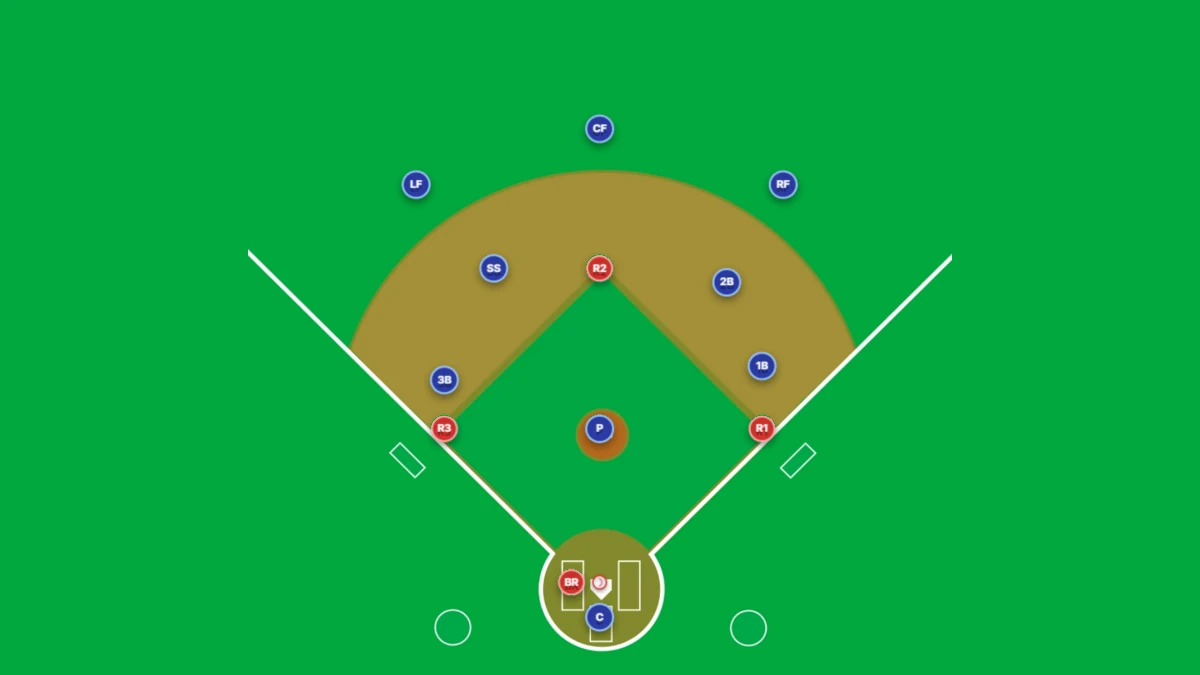
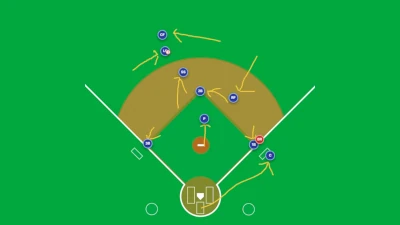
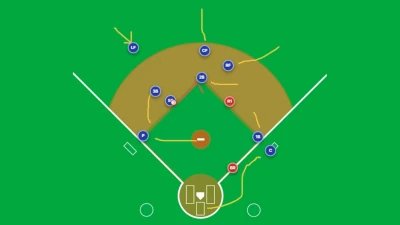
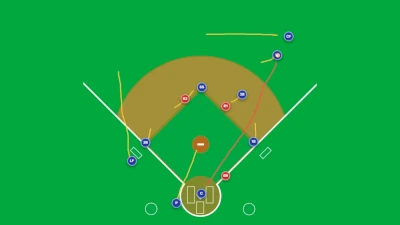
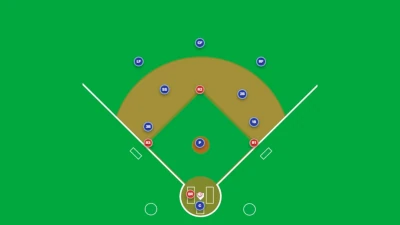
The interactive 2D play simulator allows coaches and players to visualize defensive alignments, runner movements, and ball trajectories. The interface features a central 2D baseball diamond, a left toolbar for drawing and tools, a right sidebar for scenarios and notes, and a bottom control bar for animation playback.
1. Position & Move Tokens
- Number of Runners: Select the number of runners by clicking Bases Empty, 1 Runner, 2 Runners, Bases Loaded in the Quick Scenarios section of the top header.
- Select Tool: Click the Move button on the left toolbar to activate selection mode.
- Dragging: Click or tap and drag any of the on-field tokens, including 9 defensive fielders (P, C, 1B, 2B, 3B, SS, LF, CF, RF), base runners (BR, R1, R2, R3), and the ball, to any position on the diamond.
2. Animate Custom Plays (Step-by-Step Sequences)
- Set Initial Positions: Drag all fielders, runners, and the ball to their starting positions.
- Move & Capture Steps: Drag the tokens to where they should move next in the sequence, then click + Add Step in the right sidebar under Custom Play.
- Repeat: Continue repositioning tokens and clicking + Add Step for each key movement in the play.
- Play Back: Click ▶ Play Simulation on the bottom control panel to smooth-animate token movements across all added steps.
- Click Clear Steps if you want to wipe the current animation sequence and start over.
3. Ball Trajectory Settings
- Click the Hit Type button on the bottom of the left toolbar to open the Trajectory Profile menu.
- Select a hit trajectory to control the vertical arc curve of the ball during animation playback:
- Grounder: Fast, low to the ground.
- Line Drive: Direct path.
- Fly Ball: High parabolic arc.
- Pop Fly: High vertical arc.
4. On-Field Telestrator & Annotations
- Freehand Lines: Click the Draw icon on the left toolbar to sketch player routes, cutoff angles, or throw paths directly on the canvas.
- Arrows: Select the Arrow tool to draw directional vectors.
- Color Palette: Choose yellow, red, blue, or white for drawing lines.
- Clear Overlay: Click the Trash Can icon to clear all telestrator drawings from the field.
5. Play Library & Preset Scenarios
- In the right sidebar under the Play Library tab, select pre-configured play scenarios such as Gap Double (LCF), Sacrifice Bunt to 3B, or 6-4-3 Double Play.
- Selecting a preset automatically positions fielders, configures default animation steps, and populates tactical execution instructions.
- Click Reset in the top navigation bar at any time to return all tokens to standard base positions.
6. Playback & Timeline Controls
- Play / Pause: Toggle playback of the play simulation.
- Timeline Scrubber: Drag the slider bar to inspect token positions at any exact timestamp in the sequence.
- Step Forward / Backward: Frame-step through individual keyframe points.
- Speed Toggle: Adjust playback speed between 0.5x, 1.0x, and 2.0x.
More Details
Need complete step-by-step instructions? View Full Documentation →